Employer Portal User Guide

Last Updated: July 2025

Dashboard

The main dashboard provides a high-level view of the portal’s key features through a banner and shortcut “pills.” These shortcuts allow quick access to:
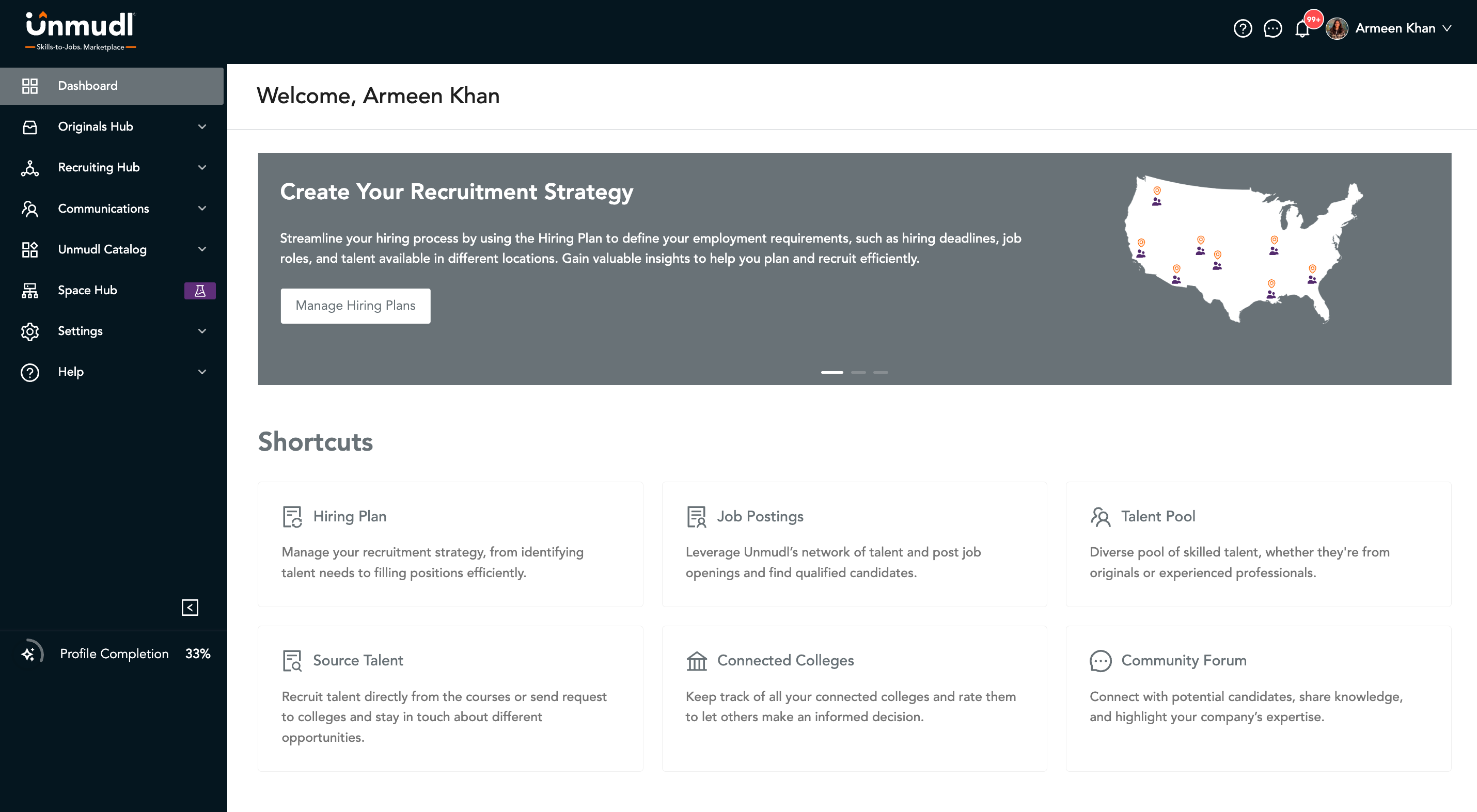
  • Hiring Plan
  • Job Postings
  • Talent Pool
  • Source Talent
  • Connected Colleges
  • Community Forum

Originals Hub

The Originals Hub offers insights into the learning content your organization is offering. It includes performance metrics and engagement statistics.

Main Metrics Displayed

  • Total Original Courses offered
  • Certificates Earned by enrolled learners
  • College Credits Earned by learners who completed your courses
  • Social Impact KPI, reflecting your contribution through scholarships, hires, etc.

Tabs in Originals Hub

a) Statistics

  • Displays all enrolled learners in your original courses.
  • Filter data to view specific learners.
  • Access a detailed datatable showing:
    • Learner profiles
    • Course enrollments
    • Progress tracking
  • Network Map: Visualize learner locations across regions.
  • Generate Report: Export filtered data in .xlsx, .csv, or .xls formats.

b) My Originals

  • View and manage your original courses.
  • Clickable course titles redirect to learner-facing course pages.
  • Filters allow targeted course viewing.

These courses can be featured as Recommended Learning when posting jobs.

Recruiting Hub

The Recruiting Hub is your central workspace for hiring activities. It includes an overview section with quick access to:

  • Talent Pool
  • Job Postings
  • Source Talent
  • Hiring Plan

Each section displays relevant statistics and shortcuts.

Tabs in Recruiting Hub

a) Talent Pool

  • View all registered talent on the Manufacturing Georgia portal.
  • Demographic visualizations and a searchable datatable of profiles.
  • View detailed profiles via an Actions button, which opens a learner detail drawer.
  • Advanced Filters: Search by employment status, location, skills, security clearance, hobbies, and more.
  • Talent Lists: Group and save talent into custom lists for future reference.
  • Network Map: Visual talent distribution visualization with filter functionality.
  • Generate Report: Export talent data based on applied filters.

b) Job Postings

  • View all your posted jobs in a datatable with status indicators.
  • Use the Actions button to:
    • Edit postings
    • View applicant details (including CVs and other attachments)
  • Add New Job:
    • Manually fill out a job form
    • Upload jobs in bulk
  • Generate Report: Export data on all job postings, including saved and active ones.

c) Source Talent

  • Manage all your talent sourcing requests and their responses.
  • Send Talent Request: Reach out to colleges or learners for specific skill needs.

d) Hiring Plan

  • View and manage all your hiring plans.
  • Create New Plan: Opens a form to define a new hiring strategy.
  • Plans are listed in a datatable with review status indicators.
    Actions: Edit or delete existing plans.

Communications

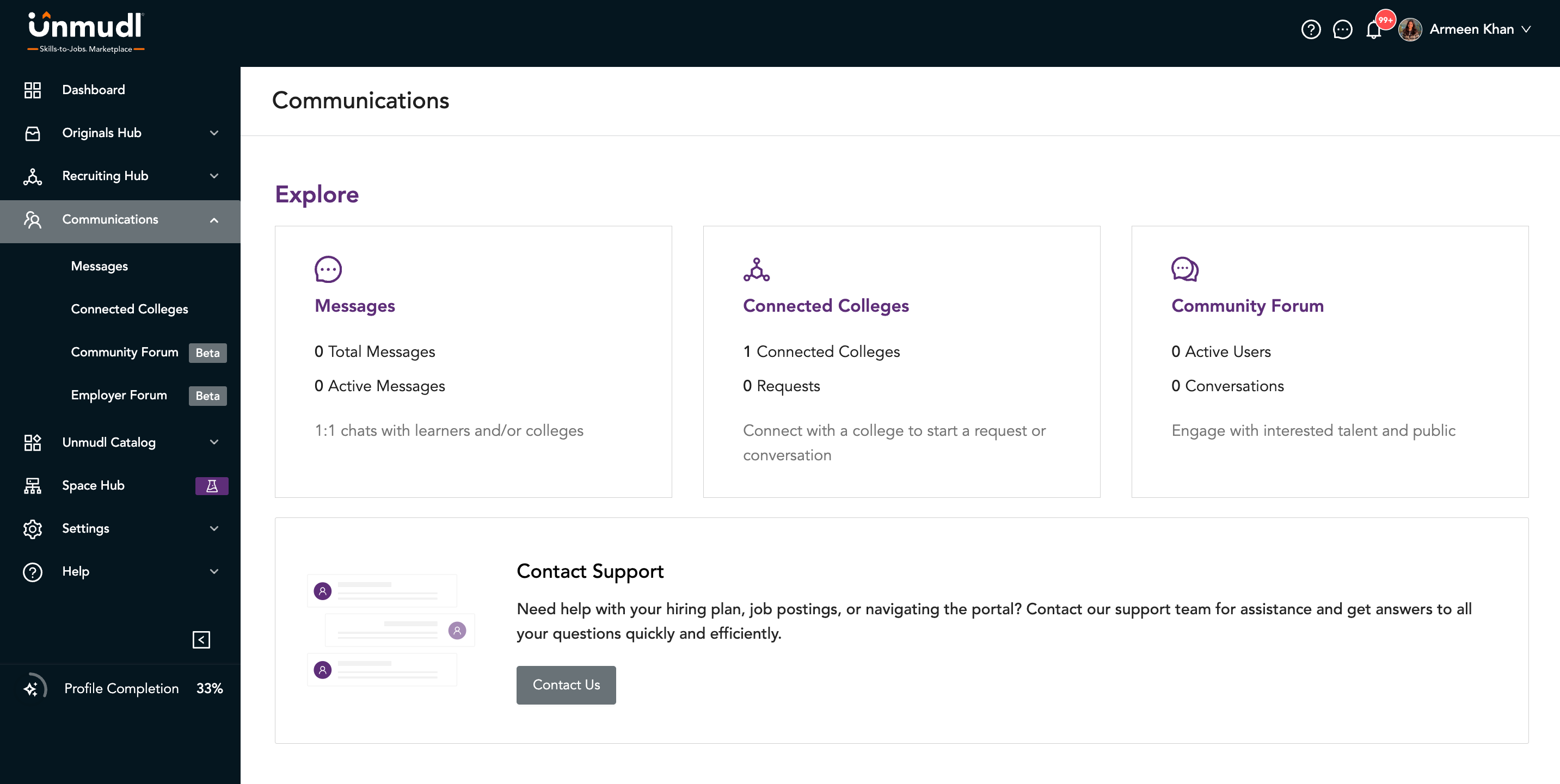
This section centralizes all interactions with colleges, learners, and the community.
Main Overview

  • Total inbox messages
  • Forum participants
  • Connected colleges

Tabs in Communications

a) Messages

  • Unified inbox for:
    • Job applicant messages
    • Talent sourcing responses
    • Proposals from colleges or employers
  • Respond and manage communications from one place.

b) Connected Colleges

  • View and rate your connected colleges.
  • Add More Colleges: Use the button to browse and connect with new institutions.
  • Requests Tab: Handle inbound and outbound connection or proposal requests.
    • Example: Propose a seminar to a college.

c) Community Forum

  • Engage in public discussions with learners.
  • View and respond to questions directed to your organization.
  • Go to Forums button for full public forum view.
  • Post Button: Create your own content and participate in discussions.

d) Employer Forum

  • A private space for employer-only collaboration.
  • View, comment on, and post in discussions relevant to employer interests.

MG Catalog

Pay Tuition

  • Create Scholarships: Sponsor learners by offering tuition support for specific courses.
  • Use the Create Scholarship button and fill in the required details.
  • Scholarships are displayed in a datatable with full record-keeping.
  • Generate Report: Export data on all scholarships you have issued.

MGM Press Kit

Please find MGM's Press Kit with the following marketing assets

  • Logos & Brand Guidelines – Ensure consistent branding across all digital and print channels.
  • Social Media Templates – Pre-designed posts for promoting events, and success stories.
  • Flyers & One-Pagers – Print or digital handouts for learners, employers, and educational partners.
Download Press Kit